age calculator
How to make an age calculator in Excel? Excel
Now that you know how to make an age formula in Excel, you can build a custom age calculator, for example this one:https://onedrive.live.com/embed?c
The image in the above image is an Excel Online sheet, so take the time to enter your birthdate in the corresponding cell, and you'll discover your age within a matter of seconds.
The calculator utilizes the following formulas to calculate age using the web page's date of birth in cell A3 and the current date.
-
Formula in B5 calculates age in years, months, and days:
=DATEDIF(B2,TODAY(),"Y") & " Years, " & DATEDIF(B2,TODAY(),"YM") & " Months, " & DATEDIF(B2,TODAY(),"MD") & " Days" -
Formula in B6 calculates age in months:
=DATEDIF($B$3,TODAY(),"m") -
Formula in B7 calculates age in days:
=DATEDIF($B$3,TODAY(),"d")
If you have some experience with Excel Form controls, you can include an option to calculate age at a certain date such as in the following picture:
To accomplish this, add two option buttons ( Developer tab > Insert > Form controls > Option Button), and link them to a cell. After that, you write an IF/DATEDIF formula to get age or at the time of today's date or on the date indicated by the user.
This formula follows the following reasoning:
-
If the Today's date option box is selected, value 1 appears in the linked cell (I5 in this example), and the age formula calculates based on the today date:
IF($I$5=1, DATEDIF($B$3,TODAY(),"Y") & " Years, " & DATEDIF($B$3,TODAY(), "YM") & " Months, " & DATEDIF($B$3, TODAY(), "MD") & " Days") -
If the Specific date option button is selected AND a date is entered in cell B7, age is calculated at the specified date:
IF(ISNUMBER($B$7), DATEDIF($B$3, $B$7,"Y") & " Years, " & DATEDIF($B$3, $B$7,"YM") & " Months, " & DATEDIF($B$3, $B$7,"MD") & " Days", ""))
In the end, combine the above functions together, and you'll have the complete age calculator (in B9):
=IF($I$5=1, DATEDIF($B$3, TODAY(), "Y") & " Years, " & DATEDIF($B$3, TODAY(), "YM") & " Months, " & DATEDIF($B$3, TODAY(), "MD") & " Days", IF(ISNUMBER($B$7), DATEDIF($B$3, $B$7,"Y") & " Years, " & DATEDIF($B$3, $B$7,"YM") & " Months, " & DATEDIF($B$3, $B$7,"MD") & " Days", ""))
The formulas in B10 and B11 operate with similar logic. Of course, they are much simpler because they include just one DATEDIF function that returns age as the number of full months or days, respectively.
To find out more I encourage you to Download the Excel Age Calculator and investigate the formulas found in cells B9:B11.
Download Age Calcqulator for Excel
Easy-to-use age calculator for Excel
Users of our Ultimate Suite don't have to create their own age calculator in Excel - it is only a couple of clicks away:
-
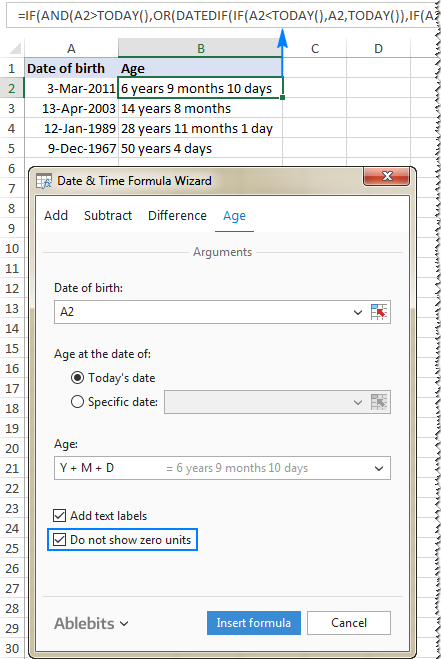
Choose a cell in which you want to insert an age formula. Go to the Ablebits Tools tab and then click the Date and Time group, then click the Date & Time Wizard button.
- The Date & Time Wizard will begin and then you go straight to the tab for Age. tab.
-
On the
Age
Tab, there are 3 items to be specified:
- Birth date data as an individual cell reference or date in the mm/dd/yyyy format.
- Age at the current time or an exact date.
- Choose whether to calculate age in terms of days, months and years or in exact age.
- Click the Add formula button.
Done!
The formula will be inserted into the selected cell momentarily when you double-click on your fill button to duplicate it into the column.
You may have seen, the formula generated from the Excel age calculator is more complex than the ones we've covered so far but it also accommodates plural and singular units such as "day" and "days".
If you'd prefer to get rid of zero units like "0 days", select the Do not display zero units checkbox:
If you're looking to play with this age calculator as well as to discover more time-saving add-ins for Excel You're invited to download the trial version of our Ultimate Suite. If you're impressed and want to purchase a license, don't miss this exclusive offer only for blog readers.
How do I highlight certain age groups (under or over a specified age)
In certain circumstances it is possible to not only calculate age in Excel but also highlight cells which contain age ranges that are below or over a specific age.
If the age calculation formula yields the total number of years that you have, you can design a regular conditional formatting rule with a formula like these ones:
- To indicate ages equivalent to or over 18:
- To highlight ages under 18: =$C2<18
C2 is the highest cell in the Age column (not comprising the header column).
But what if your formula is displaying age in years and months or in years, months and days? In this scenario you'll have to create a rule which is based on the DATEDIF formula that calculates age from date of birth in years.
If birth dates are placed in column B, beginning with row 2. The formulas are as follows:
-
To highlight ages under 18 (yellow):
=DATEDIF($B2, TODAY(),"Y")<18 -
To highlight ages between 18 and 65 (green):
=AND(DATEDIF($B2, TODAY(),"Y")>=18, DATEDIF($B2, TODAY(),"Y")<=65) -
For highlighting the ages that are over 65 (blue):
=DATEDIF($B2, TODAY (),"Y")>65
To create rules based on these formulas, simply select the cells or rows which you would like to highlight. Click the Home tab, then Styles section, and then click conditional formatting > Create Rule... Then, use a formula to determine which cells to format.
The specific steps are available on this page: How to make the conditional formatting rule, basing on a formula.
This is how you determine age using Excel. I hope that the formulas were easy for you to learn and that you give them a the chance to test them on your worksheets. Thank you for reading , and I hope to see you back here next week on our blog!
Comments
Post a Comment